 Cancel Order
 Logo Slider
 Cart Reservation
 Magic Menu
 PageSpeed
 DeleteX
 ChargeMe
 Age Restriction 18+
 DocumenThemix
 Agile Search
 Newsletter Popup
 IConvert Promotion
 Trusty Sale Proof
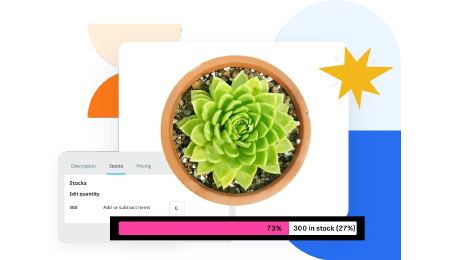 Countdown x Bar
 Xleft
Xleft Jump to Checkout
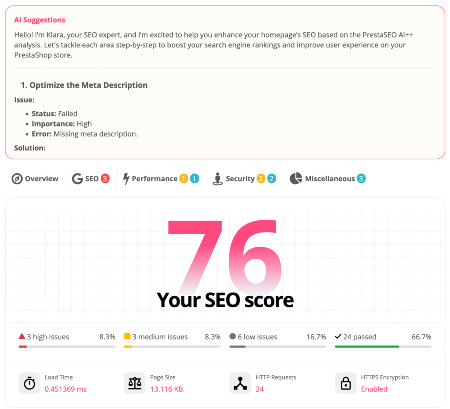
 PrestaSEO AI++
 Accessibility Guard
 SOO Agent Gateway
 SOO Agent Catalog Tools
 SOO Agent SEO Tools
 GDPR
GDPR Create a new account
PrestaShop + Brevo SMTP Setup (Free, Step by Step)
Brevo is the default answer for a small PrestaShop store: 300 emails a day on the free plan, and no credit card is required to start. This guide takes you from an empty account to a test order confirmation arriving in a real inbox.
1. Why Brevo SMTP for a PrestaShop store
- 300 emails a day on the free plan — roughly 9,000 a month, which covers a store doing several hundred orders.
- No daily rollover. Unused emails do not carry to tomorrow. Plan around the daily cap, not a monthly total.
- Retry queue. When you hit 300 in a day, up to 1,000 more emails are held and sent when the cap resets instead of being dropped.
- Transactional and campaigns in one account, so a newsletter does not need a second provider.
2. Create the account and generate the SMTP key
- Sign up at brevo.com. No card is required for the free plan.
- In the left menu go to Transactional → Settings.
- Open the SMTP tab. Brevo shows your SMTP server and your login.
- Click Generate a new SMTP key. Copy it immediately — Brevo shows it once.
The single most common setup mistake: the SMTP password is this generated key, not your Brevo account password. The login is your Brevo account email; the password is the SMTP key. Mixing those two up causes an authentication failure on every send.
3. Verify your sending domain (do not skip this)
Sending from an unverified domain is why Brevo mail lands in spam.
- Go to Senders, Domains & Dedicated IPs → Domains.
- Add your store's domain — the one customers see in the "from" address.
- Brevo shows DKIM and DMARC records (and Brevo's own verification record).
- Add each one as a DNS record at your domain registrar.
- Return to Brevo and click Authenticate this domain.
The status turns green when the DNS records are live. Until it does, sends still work but inbox placement suffers.
4. Enter the settings in PrestaShop
Go to Advanced Parameters → E-mail.
- Select Set my own SMTP parameters (for advanced users ONLY).
- SMTP server:
smtp-relay.brevo.com - Username: the login shown on Brevo's SMTP tab — usually your account email, sometimes a numeric login like
[email protected]. Use exactly what Brevo displays. - Password: the SMTP key from step 2.
- Encryption:
TLS - Port:
587
Leave every other field as it is.
5. Send the test email
In the same screen, use Send a test email and enter an address you control.
- Arrives in the inbox → done. Order confirmations, password resets and contact form messages now use this route.
- Arrives in spam → go back to step 3. The domain authentication is incomplete.
- Fails with an authentication error → the username or the SMTP key is wrong. Re-copy both from Brevo's SMTP tab; do not type them.
6. Set the from-address to match
In Shop Parameters → Contact → Contacts, every contact should use an address on the domain you verified in step 3. A mismatch between the "from" address and the authenticated domain is a deliverability problem Brevo cannot fix for you, and mailbox providers are more likely to filter the message.
7. When you will outgrow the free plan
Watch for these, in order:
- Consistent daily caps. If Brevo's dashboard shows you queued emails regularly, you are above 300 a day and need a paid tier.
- Marketing campaigns on top of transactional mail. Campaigns share the same 300-a-day allowance, so a single newsletter to 400 contacts exhausts it for the rest of the day.
- Deliverability needs of a large list. Dedicated IP and advanced reporting are paid features.
Compare paid tiers against Amazon SES before upgrading — at high volume SES is far cheaper per email, though harder to configure.
Related guides
- PrestaShop not sending emails? Fix it with SMTP — the full diagnosis path if this does not work
- Which SMTP provider should your store use? — real 2026 prices against your order volume
Checklist
- ☐ Brevo account created (free plan, no card)
- ☐ SMTP key generated and copied
- ☐ Sending domain added and authenticated (DKIM green)
- ☐
smtp-relay.brevo.comentered as SMTP server - ☐ Username = Brevo login, password = SMTP key
- ☐ Port 587 with TLS selected
- ☐ Test email received in the inbox
- ☐ From-address in Shop Parameters → Contact matches the verified domain
- ☐ Real test order placed and confirmation received
FAQ
Is Brevo's SMTP really free? Yes. The free plan sends 300 emails a day and does not ask for a credit card. The limit is per day and unused emails do not roll over to the next day.
What is the Brevo SMTP password? It is a key you generate in Transactional → Settings → SMTP, not your account password. Brevo shows it once, so generate a new one if you lost it.
Why is my test email going to spam with Brevo? Your sending domain is not authenticated. Add the DKIM and DMARC records from Senders, Domains & Dedicated IPs → Domains and wait for Brevo to show the domain as authenticated.
Does Brevo work with PrestaShop 1.7 and 8 as well as 9? Yes. The SMTP fields are in Advanced Parameters → E-mail in all three, and the server, port and credentials are the same. Only the surrounding menu labels differ slightly between versions.
What happens when I send more than 300 emails in a day? Brevo holds up to 1,000 further emails in a retry queue and sends them when the daily limit resets. Emails beyond that queue are dropped, so a bulk send can silently lose messages.
Can I use Brevo for marketing emails too? Yes, campaigns and transactional mail share one account and the same daily allowance. A large newsletter can consume the whole day's quota and delay order confirmations, so schedule campaigns away from peak order hours.

 PrestaSOO