 Cancel Order
 Logo Slider
 Cart Reservation
 Magic Menu
 PageSpeed
 DeleteX
 ChargeMe
 Age Restriction 18+
 DocumenThemix
 Agile Search
 Newsletter Popup
 IConvert Promotion
 Trusty Sale Proof
 Countdown x Bar
 Xleft
Xleft Jump to Checkout
 PrestaSEO AI++
 Accessibility Guard
 SOO Agent Gateway
 SOO Agent Catalog Tools
 SOO Agent SEO Tools
 GDPR
GDPR Create a new account
Boost PrestaShop Speed Without Breaking the Store
Most speed guides give you a list of changes and stop when the number improves. The list is not the hard part. The hard part is that three of those changes — combining JavaScript, enabling full-page cache, and switching to a stricter compression level — break parts of the store in ways you will not notice for a week.
This guide orders the changes by risk, lowest first, and gives the rollback step for each one. If you only have one hour, do steps 1 to 4 and stop.
Measure before you touch anything
You need three numbers, or you will not know whether a change helped:
- Server response time — the time your server takes to return HTML, measured on a product page. Not the full page load.
- Page weight in MB — total bytes from the browser network panel.
- Conversion rate for the last 14 days — because a store that loads in one second and no longer accepts orders is not faster, it is broken.
Write them down. Half of all "the speed fix did not work" reports are actually "nobody recorded the starting number".
Step 1 — Cache settings (risk: very low)
Advanced Parameters → Performance. In PrestaShop 9.1.1 the page is split into seven cards: Smarty, Debug mode, Modules, Optional features, CCC (Combine, Compress and Cache), Media servers (use only with CCC) and Caching. Only the first and the fifth hold the settings in this step.
- In the
Smartycard —Template compilation:Recompile templates if the files have been updated - In the
Smartycard —Cache:Clear cache everytime something has been modified - In the
CCC (Combine, Compress and Cache)card —Smart cache for CSSandSmart cache for JavaScript: leave them on if they are already on. Turning them on for the first time counts as step 5, not step 1 — combining and minifying files can break a theme, so it needs its own round of testing.
Leave the Caching card alone unless you run a dedicated cache server. Its Use cache switch needs Memcached, APC or Xcache installed on the server first.
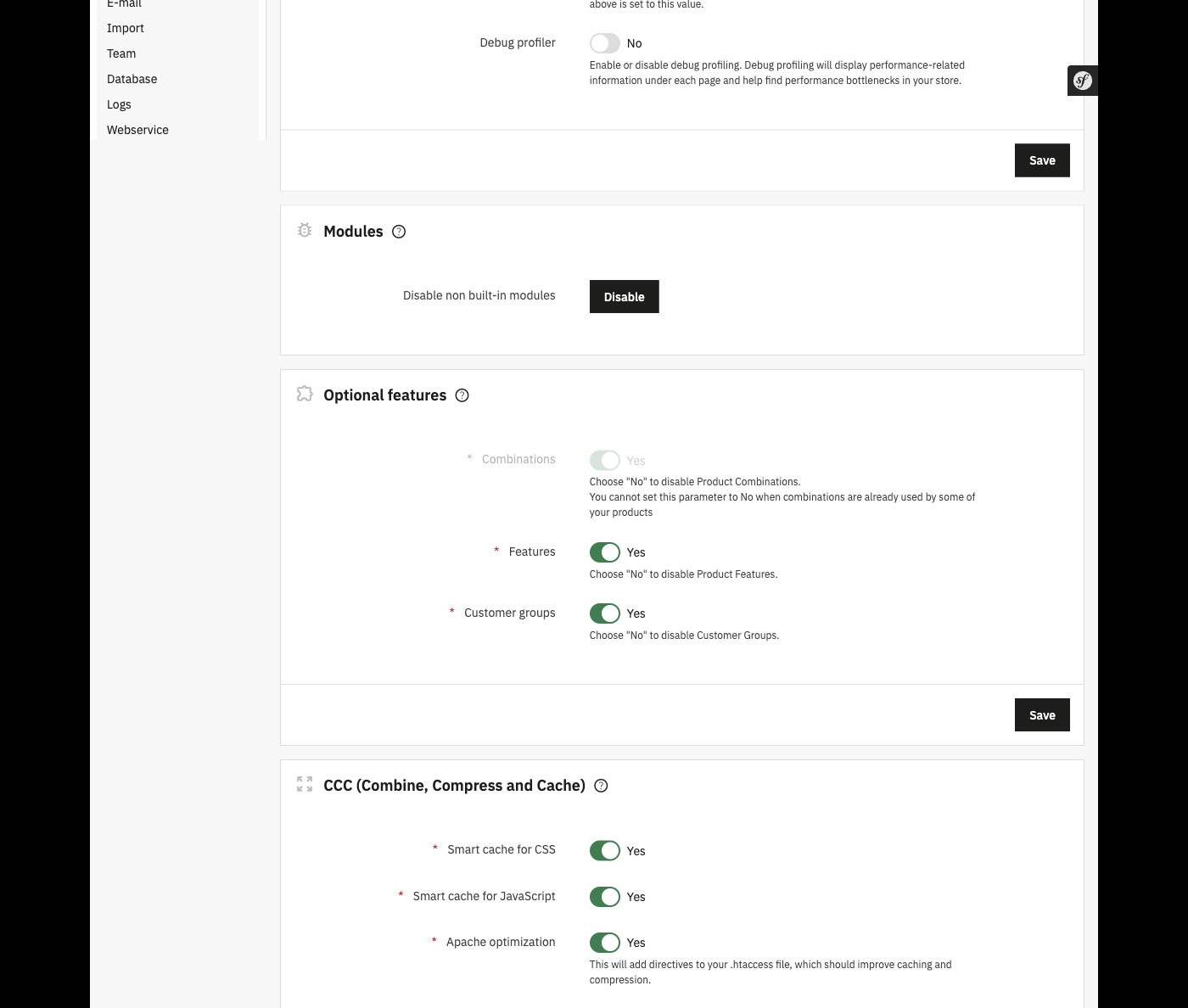
In PrestaShop 9.1.1 this screen is Advanced Parameters → Performance. The Smarty card and the CCC (Combine, Compress and Cache) card are the two this step touches — leave the other five alone for now.
Rollback: set the values back and clear the cache. Nothing else changes.
Step 2 — Cache clearing, done correctly (risk: very low)
There are three caches in PrestaShop, and clearing only one is the most common reason a change appears not to work:
- Back office cache —
Advanced Parameters → Performance → Clear cache - Browser cache — hard reload in a private window
- Server cache — the file cache under
var/cache/on the server
If your store sits behind a CDN or a proxy, there is a fourth cache in front of the server. It must be purged separately, and it is the one people forget.
Full detail: How to clear the PrestaShop cache.
Rollback: none needed.
Step 3 — Images (risk: low, but visible)
Product images are usually the largest part of page weight, and the fix is in Design → Image Settings.
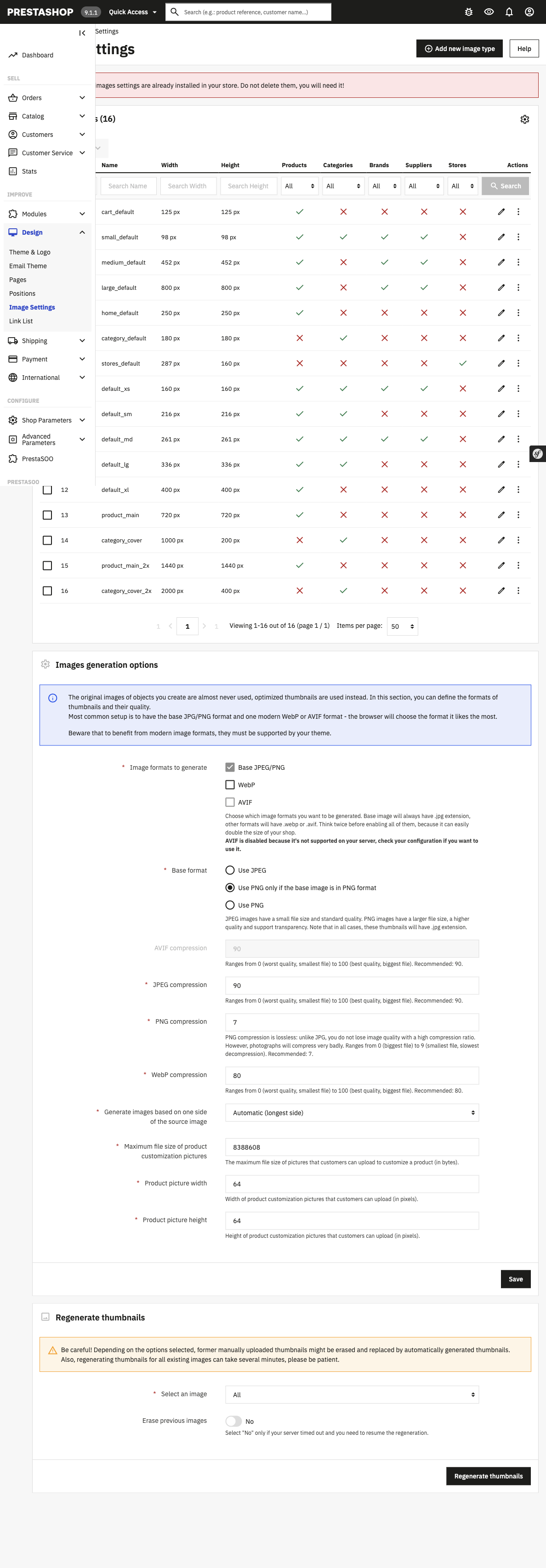
Design → Image Settings. The bottom half is where the thumbnail sizes live; the top half decides which file formats get generated.
Two rules:
- Regenerate thumbnails after changing sizes. Changing the size in the settings does nothing until you regenerate. PrestaShop will keep serving the old files.
- Keep
og:imageworking. If you shrink or rename image types, check that your social preview image still resolves. This is the most commonly broken thing after an image change.
Rollback: restore the previous size and regenerate again. Keep the old thumbnail folders until the change is confirmed.
Step 4 — Product page specifics (risk: low)
Slow product pages have their own causes, usually the combination table rendering every variant, or a review module loading on every page load. See How to fix slow product pages in PrestaShop.
Rollback: depends on the module. Deactivate it before you uninstall it.
Step 5 — Combining and minifying CSS/JS (risk: HIGH)
This is where stores break. Symptoms appear 2–5 days later, usually on the checkout page and usually for a minority of visitors:
- Quantity buttons stop updating
- The payment form does not render
- A cookie banner blocks the order button
- Shipping estimates stop refreshing
Before you enable it: place one real test order, on mobile, on a 4G connection. After you enable it: place another one, and clear the CDN cache first. If the order completes and the confirmation email arrives, the change is safe for the common path.
Rollback: turn the setting off, clear all caches. This restores the previous state completely, because the change is a setting and not a file edit.
Step 6 — Compression and server-level cache (risk: HIGH)
Stricter compression levels and full-page cache at the server level can serve a cached page to a logged-in customer, which means one customer seeing another's cart. This is rare, it is catastrophic, and it only shows up under load.
Never enable full-page cache without an exclusion for logged-in sessions and for the cart and checkout controllers. If you cannot configure those exclusions, do not enable it.
Rollback: disable immediately. Do not wait to measure.
What to measure after
Wait seven days, not one hour. Then compare:
| Metric | Where | Expected |
|---|---|---|
| Server response time | Your hosting panel or a timing tool | Down |
| Page weight | Browser network panel | Down |
| Add-to-cart rate | Analytics | Flat or up |
| Checkout completion rate | Analytics | Flat or up |
If page weight went down but checkout completion went down with it, a broken setting is hiding inside the improvement. Turn steps 5 and 6 off and re-measure before looking anywhere else.
The rule for the whole list
Change one thing, verify the store still takes orders, then change the next. Batching three changes and measuring once means you will never know which one broke checkout.
Related guides
- How to speed up a PrestaShop store — the full change list, from smallest to largest win
- How to clear the PrestaShop cache — the three caches, and the fourth people forget
- How to fix slow product pages in PrestaShop — the per-page causes
- PageSpeed module — applies these changes with a one-click rollback
Checklist
- ☐ Server response time, page weight and conversion rate recorded
- ☐ Template compilation set to recompile on change
- ☐ All three caches cleared (and the CDN purge done separately)
- ☐ Thumbnails regenerated,
og:imageverified - ☐ One real order placed on mobile before enabling CSS/JS combining
- ☐ One real order placed after enabling it, CDN purged first
- ☐ Full-page cache has exclusions for logged-in, cart and checkout
- ☐ Re-measured after seven days, not after one hour
FAQ
How much faster can a PrestaShop store get? It depends where the time goes. If your server takes 800 ms to return HTML no front-end change will help — that is a hosting or database problem. Measure server response time first; it decides whether the rest of this list matters.
Does enabling CSS/JS combining break the theme? Usually not, but it breaks third-party modules often enough that you must place a test order afterwards. The failure is silent until a customer cannot pay.
Can caching make my store show wrong prices? Only if a page is cached across customers, which is a full-page cache misconfiguration. A correctly configured cache excludes logged-in sessions and the cart. If you cannot set those exclusions, leave it off.
The speed score improved but sales did not. Why? Because a speed score is not a business metric. Compare add-to-cart and checkout completion over 14 days. A faster store with a broken payment step scores well and earns nothing.


 PrestaSOO