 Cancel Order
 Logo Slider
 Cart Reservation
 Magic Menu
 PageSpeed
 DeleteX
 ChargeMe
 Age Restriction 18+
 DocumenThemix
 Agile Search
 Newsletter Popup
 IConvert Promotion
 Trusty Sale Proof
 Countdown x Bar
 Xleft
Xleft Jump to Checkout
 PrestaSEO AI++
 Accessibility Guard
 SOO Agent Gateway
 SOO Agent Catalog Tools
 SOO Agent SEO Tools
 GDPR
GDPR Create a new account
How to Set Up Advanced Search in PrestaShop
Out of the box, PrestaShop search does one thing: it matches the words in your product name. If a customer types "wireless earbuds noise cancelling" and your product is called "SoundCore A3", they get nothing.
Search is the shortest path to a sale on any store. A customer who searches has already decided what they want. Every search that returns zero results is a customer you had and lost.
Check what your search actually does
Before changing settings, run three searches on your own store:
- A product name, exactly as it appears — this must return that product
- A category word, like "shoes"
- A phrase a customer would type, like "cheap running shoes for flat feet"
Most PrestaShop stores pass test 1 and fail 3. That failure is what this guide fixes.
The core settings
Shop Parameters → Search
| Setting | Value to use | Why |
|---|---|---|
| Search within word | No to start | No means a word only matches from its start — "shoes" will not find "runningshoes". Yes matches anywhere inside a word: it catches more, and matches more junk. Start with No (the default). |
| Search exact end match | No | Requiring the phrase to end correctly kills partial matches. |
| Minimum word length (in characters) | 3 | 1–2 makes the index enormous and matches noise. 4 is safer for English but blocks "ink", "usb", "8gb". |
| Maximum word length (in characters) | 40 | Anything above is usually a pasted URL, not a search. |
| Fuzzy search | No | Looks helpful, produces wrong products. A customer who types "shoos" and gets boots is worse off than getting no result. |
| Maximum approximate words allowed by fuzzy search | leave at default | Only used when fuzzy search is on. |
| Maximum acceptable word difference | leave at default | Same — it widens the net rather than focusing it. |
| Blacklisted words | your stop words | "the", "a", "for" — words too common to narrow anything. |
Shop Parameters → Search, on the Search tab. The toggles are the top half. The field weights — the fix for most stores — are the bottom half.
Search within word is the one setting people misread. Read it literally: it is the switch for matching inside a word.
- No (default) — matches only from the start of a word. "shoes" finds "shoes", "shoes-red", but not "runningshoes". Fewer results, less noise.
- Yes — matches anywhere in a word. "shoes" also finds "runningshoes". More results, more noise, and a bigger index.
Leave it on No unless you sell products whose customers type a compound word that only exists mid-word. Then switch to Yes and re-run the three test searches. If they get worse, switch back.
The weights are the real lever
Below the toggles is a table of field weights: Product name, Reference, Short description, Description, Category, Brand, Tags, Attributes, Features. Each one has a number, and the number decides how strongly a match in that field counts.
This table is what most stores never touch, and it is where the fix usually is.
- A search that finds nothing useful by name but your description says it — raise the Description or Short description weight.
- Corners where the brand matters more than the name — raise Brand weight.
- A customer searching a word that only exists in an attribute ("waterproof", "32gb", "red") — raise Attributes weight. Without it, that word is close to invisible to search.
Raise one weight at a time, then run the same three test searches again. Changing four weights at once tells you nothing about which one worked.
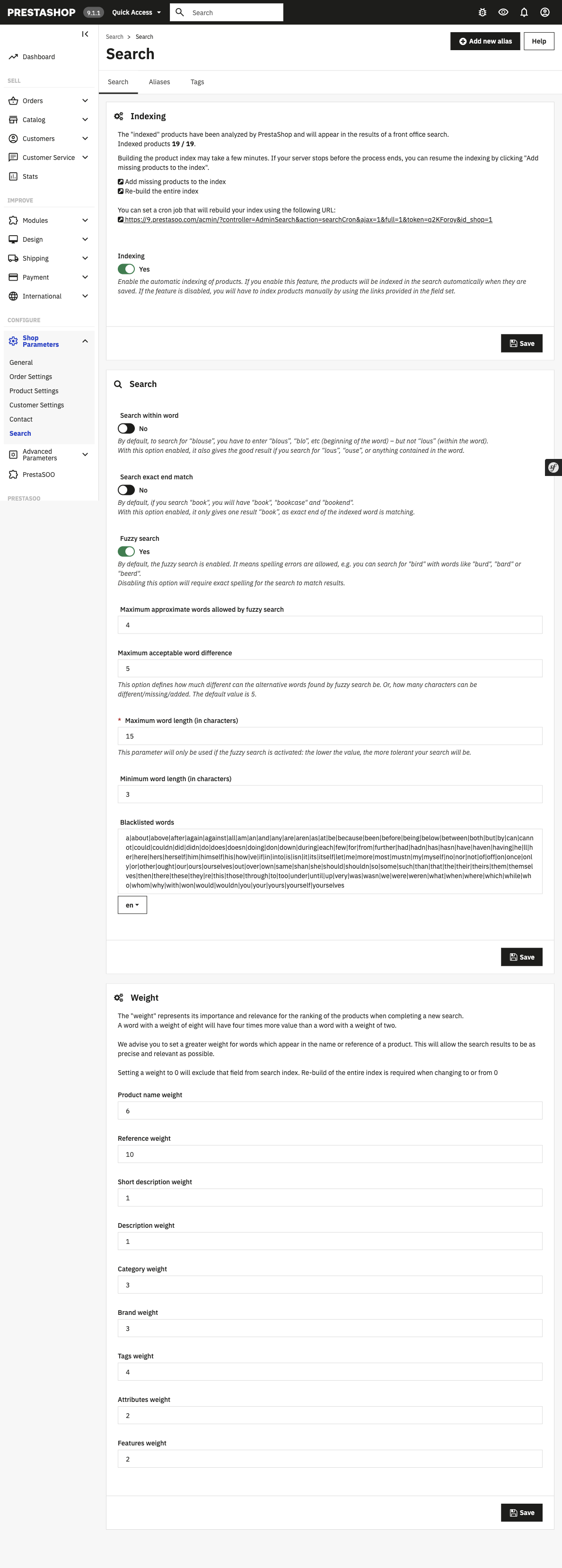
The weights table. Description and Attributes are the two most stores need to raise. Product name is usually already high.
Two rules while you are in there:
- Use tags deliberately. On the product edit page, tags live in the SEO tab —
Catalog → Products → Edit → SEO → Tags, with aManage all tagslink to the full list. Put the words a customer would type there: "noise cancelling", "wireless", "waterproof". - Do not rename products to match search terms. Renaming hurts the product page title, the URL and every existing link. Fix it with weights and tags instead.
Tags and the weights together are the cheapest lever here. Twenty products tagged with the words buyers type will fix more zero-result searches than any toggle above.
Handle the searches that return nothing
PrestaShop logs every search and whether it found anything. Shop Parameters → Search shows the last searches performed.
Read that table weekly and sort by results. The zero-result rows are your shopping list:
- Same query appears repeatedly → you do not sell that thing, or you sell it under a different name. Fix the name or the tags.
- Typos of real products → consider spelling suggestions, but only if the typo repeats.
- A category word returning nothing → you have no category or tag for it, even though you sell the products.
This log is the most valuable page in the back office for a small store, and almost nobody reads it.
What advanced search cannot do
- Understand intent. "Gift for my father" cannot be matched by keywords. That needs semantic search, which is a different tool.
- Fix a missing catalog. If the search log shows demand for a product you do not sell, no setting helps.
- Work without an index. PrestaShop builds a search index from your catalog. After bulk changes to products, rebuild it, or the search runs on stale data.
Measure whether it worked
Do not judge by feeling. Two numbers, before and after:
| Metric | Where | Target |
|---|---|---|
| Zero-result searches, as a share of all searches | Search log | Down |
| Searches that lead to an add-to-cart | Analytics events | Up |
Wait two weeks. Search behaviour is seasonal enough that a one-week comparison tells you nothing.
Related guides
- Add AJAX search without page reloads — make search faster to use
- Add AI-powered search to a PrestaShop store — match by meaning instead of words
- How to speed up a PrestaShop store — a slow search box is not used
- Agile AJAX Search module — results as the customer types
Checklist
- ☐ Three test searches run on the live store
- ☐
Search within wordset to No - ☐
Minimum word length (in characters)set to 3 - ☐ Fuzzy search left off
- ☐ Field weights checked — Description and Attributes raised if searches miss
- ☐ Tags added for the words customers actually type
- ☐ Search log read, zero-result rows listed
- ☐ Search index rebuilt after bulk catalog changes
- ☐ Zero-result rate and search-to-cart rate recorded
FAQ
Why does PrestaShop search not find my products? Three usual reasons, in order: your search terms are too short for the minimum word length, the word only exists in a field whose weight is set too low, or the search index is stale after a bulk import.
Can I make PrestaShop search the product description? Yes. Below the toggles on the same screen there is a Description weight and a Short description weight. Raise them. No module and no core edit needed.
Should I raise all the weights? No. The weights are relative — raising everything raises nothing, and it makes the search looser instead of sharper. Raise the one field your customers actually search by, then test again.
Should I enable fuzzy search? No, unless your catalog is large and highly distinct. On a small catalog it returns wrong products with confidence, which is worse for the customer than returning nothing.
The search log shows the same zero-result query every week. What does that mean? It means demand exists and your catalog does not answer it under that name. Either the product is missing, or it is named after your internal terminology rather than the customer's.

 PrestaSOO